# Setting-up and First-time Use
Getting started with the **NOTT Pulse Pro Smart Watch** is quick and intuitive. Follow these steps to set up your watch and unlock its full range of features.
{% stepper %}
{% step %}
### Step 1: Charge Your **NOTT Pulse Pro Smart Watch**
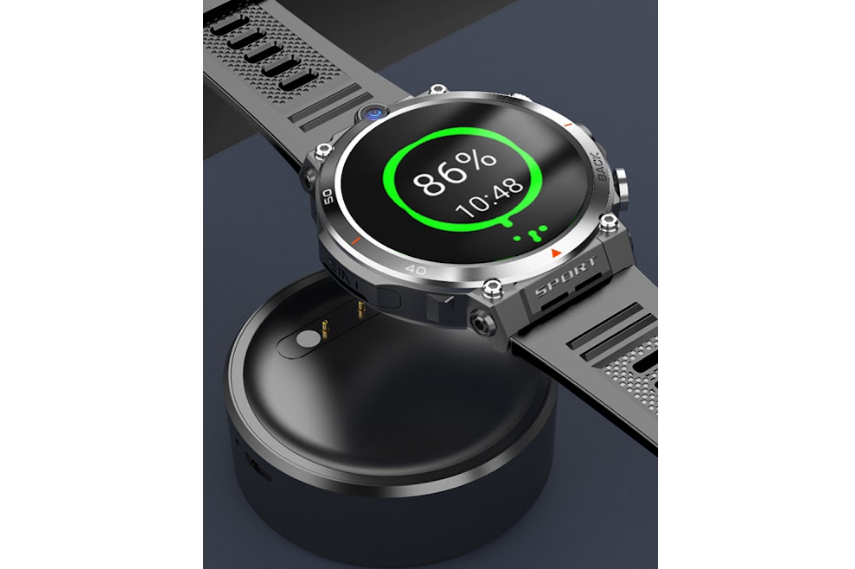
Before you begin, fully charge your smartwatch using the included magnetic USB charger.
* Connect the charger to a power source.
* Align the magnetic pins on the charger with the back of the **NOTT Pulse Pro Smart Watch**.
* Charging typically takes about 2-3 hours for a full charge.
NOTT Pulse Pro: Charge status
{% hint style="success" %}
**Tip:** Avoid letting the battery drain completely to maximize its lifespan.
{% endhint %}
{% endstep %}
{% step %}
### Step 2: Install the Nano SIM Card
To use calling and messaging features, insert a Nano SIM card into the **NOTT Pulse Pro Smart Watch**:
* **Power Off the Watch:** Ensure the watch is powered off before inserting the SIM card.
* **Open the SIM Slot:** Locate the SIM card tray on the side of the watch. Use the provided tool (or a small pin) to eject the tray.
* **Insert the SIM Card:** Place the Nano SIM card into the tray, ensuring the metal contacts face down and the card aligns with the tray's design.
* **Reinsert the Tray:** Carefully slide the tray back into the slot until it clicks securely.
NOTT Pulse Pro: Sim Tray
{% hint style="success" %}
**Note:** Ensure your SIM card has an active data plan to utilize features like calling, messaging, and internet browsing.
{% endhint %}
{% endstep %}
{% step %}
### Step 3: Power On the Watch
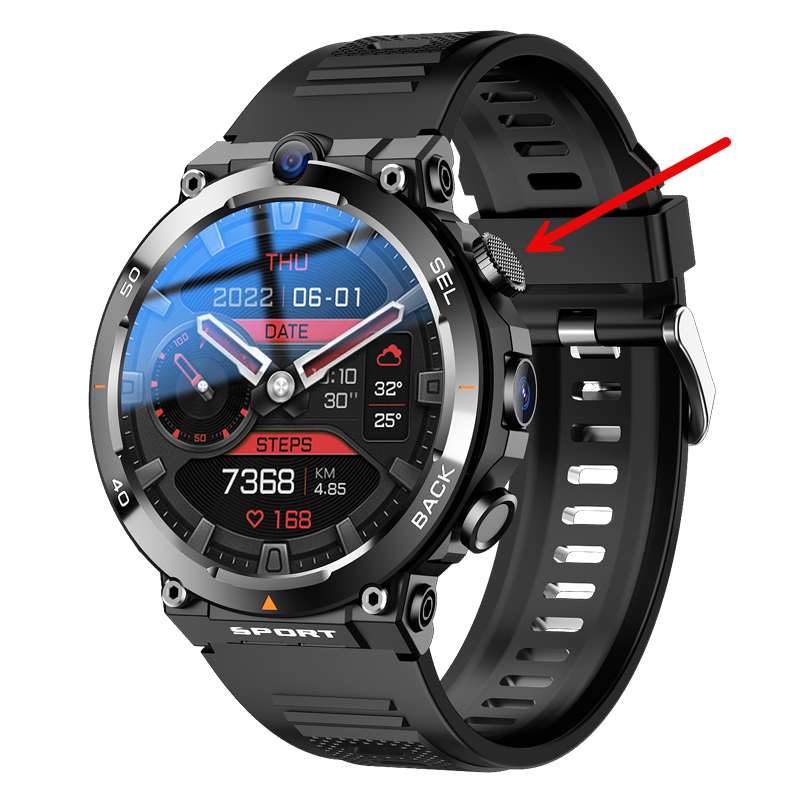
* Press and hold the power button for 3 seconds.
* The **NOTT Pulse Pro Smart Watch** will display its startup logo, indicating it’s ready for use.
NOTT Pulse Pro: Power Button
{% endstep %}
{% step %}
### Step 4: Customize Your Settings
Navigate through the watch’s menu to adjust:
* **Language and Time**: Tailor the watch to your region.
* **Notification Preferences**: Choose which apps send updates to your watch.
* **Brightness and Display Options**: Optimize the screen for battery life and visibility.
{% endstep %}
{% step %}
### Step 5: Your **NOTT Pulse Pro Smart Watch** is Ready!
Once set up, explore its interface and test out features like calls, messages, file management, and notifications.
{% endstep %}
{% endstepper %}
---
# Agent Instructions: Querying This Documentation
If you need additional information that is not directly available in this page, you can query the documentation dynamically by asking a question.
Perform an HTTP GET request on the current page URL with the `ask` query parameter:
```
GET https://chtlab-io.gitbook.io/nott-whitepaper/~/changes/2JyAS4Nltq9kVPq3eLpc/nott/nott-products/nott-pulse-pro/setting-up-and-first-time-use.md?ask=
```
The question should be specific, self-contained, and written in natural language.
The response will contain a direct answer to the question and relevant excerpts and sources from the documentation.
Use this mechanism when the answer is not explicitly present in the current page, you need clarification or additional context, or you want to retrieve related documentation sections.